Quick Start
To connect Aigon to your LLM you need to add an MCP server to it. As an example we show here how to connect Aigon to Claude (details):
- Type and send the /weblogin (short /wl) command in WhatsApp to get a login link for your browser
- Open the login link in your main browser (copy and paste if need be), then click on the orange login button to log into Aigon (details)
- In your main browser, go to claude.ai, log into Claude if need be, and add in settings add the Aigon MCP server
mcp.aigon.ai/mcpasaigon-prodto your Claude workspace (details). - The server will open an approval page on a1.aigon.ai where you will be asked to approve the connection. Click Approve and Redirect to complete the connection.
- You may also have to allow the domains
mcp.aigon.aianda1.aigon.aiin Claude's Capabilities tab if you are using Cowork (details). - In Claude, ask it to explore the Aigon MCP server
For other LLMs, the steps are similar, provided they support MCP, or they are able to make plain HTTP calls (details). Point them to the page you are currently reading and have them explain to you how to best connect.
Logging into Aigon
Login links
If you want to use OAuth authentication your first have to log your browser into the aigon website at a1.aigon.ai. In most cases, the easiest way to do so is to log in using a login link that you generate using the /weblogin or /wl command.
The login link works in a two step process, first opening a page that says "Please click here to login" and you are only logged in once you click the button. The reason for this is that it allows you to transfer the login links, that can only be used once, to another browser or device. For example
-
If you want to log in on a desktop computer, send /wl to Aigon using the WhatsApp app, click the login link in the browser that opens, and your are logged in that browser
-
If the login link opens in Chrome and you want to log in Safari then simply copy the login link from Chrome into Safari, and click Login there
-
If you do not have WhatsApp on your computer, you can generate the login link in WhatsApp and then move it over to the computer, eg using the Apple Airdrop feature, or by emailing it to yourself (this is safe because links can only be used once)
-
If you are in WhatApp on the iPhone the link may open in the app browser and you will not usually want to login there; instead click the Safari symbol on the app browser, the link opens in Safari, and you click it there
QR code
There is a second method for logging into devices which is useful if you cannot get a link to them directly. Simply open
and scan the QR code that appear on this page on your phone. Provided you are logged into Aigon on your phone it will lead you to an approval page that will allow you to log into the computer without needing a login link.
Bearer token
If your LLM cannot do OAuth, a short-lived bearer token minted from an OAuth session is the fallback — see Bearer token in the Appendix.
MCP for Claude
You can in principle add MCP servers locally, but this is not recommended. Firstly it means they are only available on the computer where they have been added, and secondly they need to reauthenticate every time the MCP server is restarted — which happens quite often, because it is under active development.
Instead we recommend installing the MCP server in claude.ai directly. First log into your normal claude.ai workspace and find the Customize menu point. When you click there you need to find the Connectors tab, then Add followed by Custom connector.
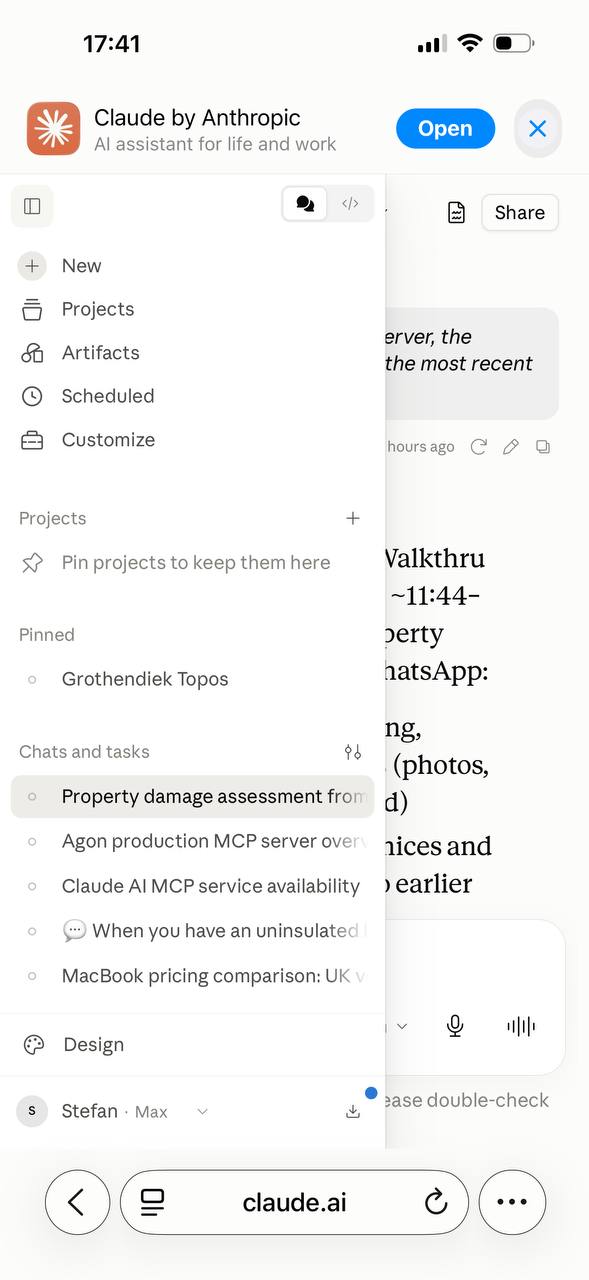
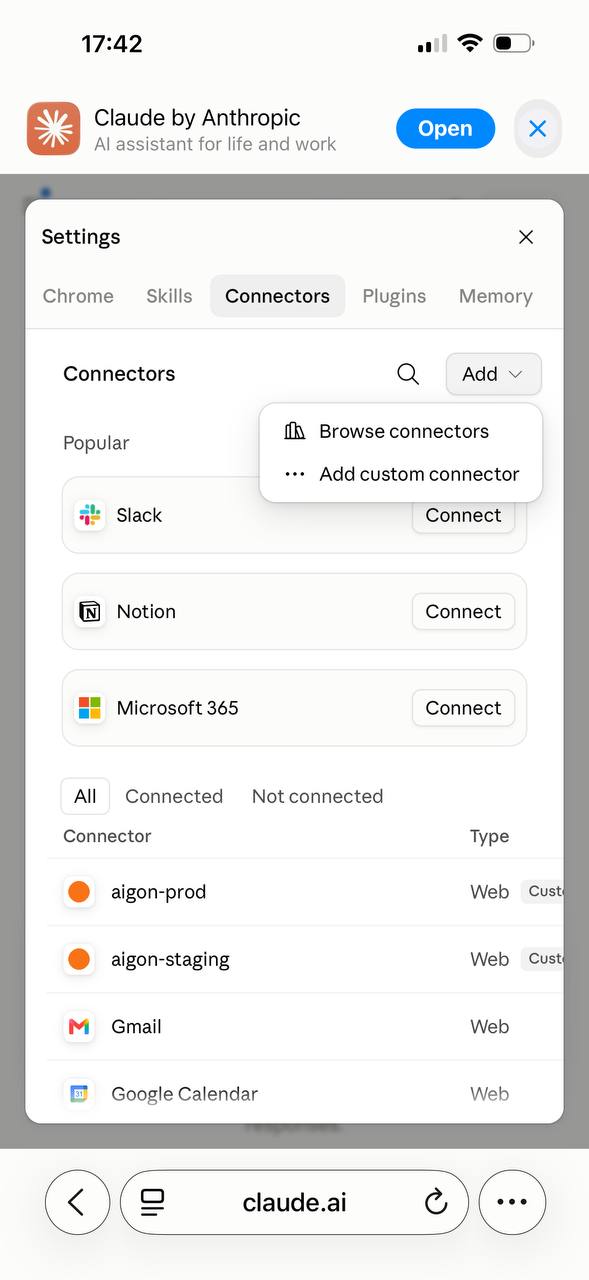
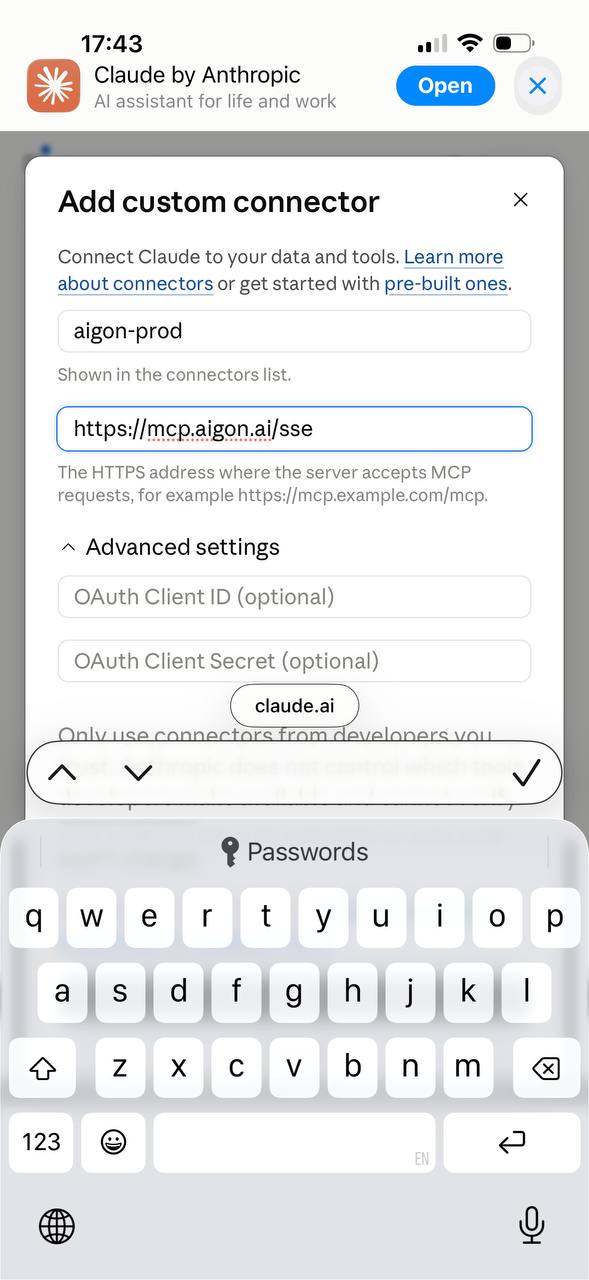
Fill in a name and the server address:
aigon-prod / https://mcp.aigon.ai/mcp
Leave the OAuth client ID and secret under Advanced settings empty — they are optional and Aigon does not need them.
When you click Add it will offer to connect. When you click that, the
OAuth flow on a1.aigon.ai opens, provided you have previously
logged in. Click Approve and Redirect, and the
connection is established.
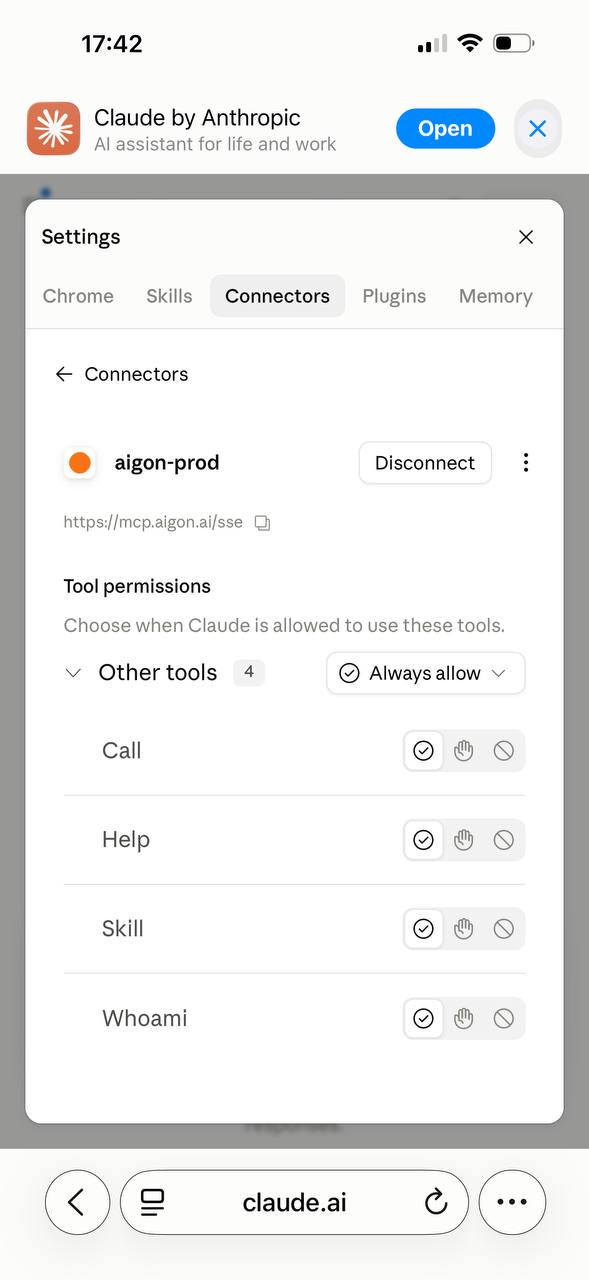
Once connected you will see the server's tool permissions — Call, Help and Skill, plus Whoami. Those first three are the whole API; see the CaSH model below. Setting them to Always allow saves being asked on every call.
MCP for Cowork
Cowork is a separate surface inside the same Claude account, with its own tab in Settings. It shares the account's connectors: an Aigon connector added under MCP for Claude is the same connector here and does not need adding a second time.
What it does not share is the assumption that the network is open. Cowork works in a sandbox, and the sandbox reaches only the domains on its allowlist.
Domain allowlist
If Claude refuses the connection, or reports that it cannot reach
mcp.aigon.ai, this is almost always the reason. Open Settings and select
the Capabilities tab:
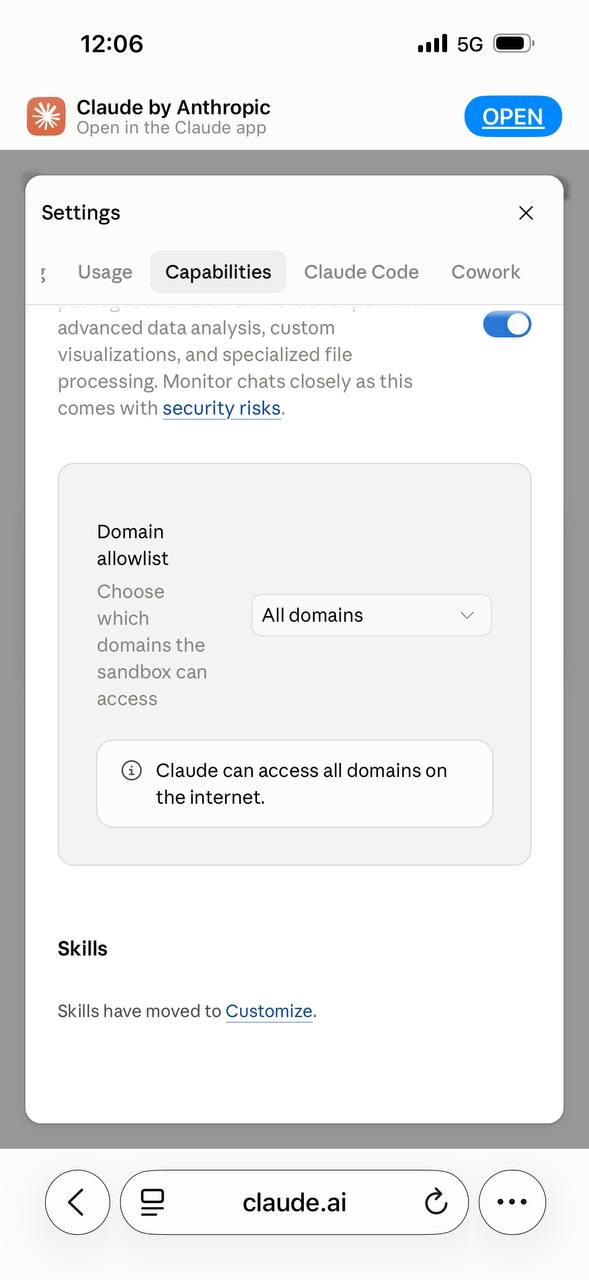
The setting shown there is All domains - "Claude can access all domains on the internet" - and with that every Aigon access point is reachable. If yours is narrowed to a specific list instead, add
mcp.aigon.ai
to it, and a1.aigon.ai as well if you want the OAuth flow to complete inside
the sandbox rather than in your ordinary browser.
Note the trade-off the same screen warns about. The capability that makes the sandbox useful - code execution, file processing - is also what makes an open allowlist worth a second thought: a sandbox that can reach every domain can carry your data to every domain. Allowlisting the two Aigon hosts and nothing else is the tighter setting, and it is enough for everything in this guide.
The allowlist governs the sandbox, not the connector. MCP CURL runs inside the sandbox and is therefore subject to it; a connector added under Customize -> Connectors is brokered by Claude itself and is not.
MCP for ChatGPT
ChatGPT only allows connecting MCP servers on the expensive Pro subscription and above — and even there only with read and fetch permissions. Full MCP support, which includes actions that write, is limited to Business, Enterprise and Edu workspaces. There is no MCP on Plus, and none on the free tier.
On Pro you enable Developer mode in ChatGPT on the web, under Settings → Apps → Advanced settings; on accounts still showing the older naming the same toggle is at Settings → Connectors → Advanced. OpenAI's own instructions are in Developer mode and MCP apps in ChatGPT.
Then add a custom connector pointing at one of the access points above, and authenticate either with OAuth or with a bearer token.
Because Pro is read-and-fetch only, an Aigon connector there will read and search your notes but will not be able to write to them. If you want the full surface without a Business workspace, the CURL access point is the way round it.
MCP CURL
Any LLM that has code execution capabilities can use the CURL API directly. In principle this API also allows for OAuth login, but in practice the LLM may not be able to execute the flow, so you may need to generate and use a short-lived bearer token. You can point your LLM to
for reading the API specifications — that is the machine-readable OpenAPI document.
In principle you can give it the bearer token directly, but this is not
recommended because it will end up in its context, which is transmitted to
your model provider. Instead, create a shell file secrets.sh that contains
export AIGON_BEARER_TOKEN=<the token from admin.mint_curl_token>
and tell your LLM to source it from there without looking at it. It can then use the variable without the value ever passing through its context:
source secrets.sh
curl -s -H "Authorization: Bearer $AIGON_BEARER_TOKEN" \
     https://mcp.aigon.ai/curl/whoami
Keep secrets.sh outside anything the LLM might read wholesale or commit — a
token in a repository is a token in everyone's context.
Appendix
Bearer token
If you for some reason cannot authenticate via OAuth, for example because your LLM does not allow it, you can mint a short-lived bearer token from a session that did sign in with OAuth, and hand it across. Note however that this token is sensitive: everyone with it has the same access to your Aigon account as the session that minted it, until it expires, so take the appropriate care when using it, and revoke it when it is no longer needed.
There is no longer a permanent bearer token to create: the /auth reset command no longer issues one, and neither does the web app. Instead, in an OAuth-authenticated MCP session (Claude Code or Claude Desktop, say), ask your LLM to call
call("admin", "mint_curl_token")
or, for a specific lifetime in seconds,
call("admin", "mint_curl_token", {"expiry_seconds": 3600})
The default lifetime is 10 minutes and the maximum is one hour. The result contains the token, the server's base_url, and example curl commands. The token cannot mint another token, and it is accepted by the MCP server (mcp.aigon.ai) only — the REST API at api.aigon.ai refuses it. When you are done, revoke it with admin.revoke_curl_token (just the one you are holding), or admin.revoke_curl_tokens (every live one); otherwise it expires by itself.
Because it expires within the hour, a long-running client cannot hold one permanently: mint a fresh one for each job. If you hold an older permanent API token (agat...), it keeps working in the same way, but new ones are not currently issued.
The token is used in the standard manner, as an HTTP Authorization header
on every request:
Authorization: Bearer YOUR_MINTED_TOKEN
That one header is all there is to it. The same slot accepts either an OAuth
access token or a minted token, so a client that already speaks OAuth needs no
special handling. A request without a usable token is answered with 401.
Most MCP clients have a field for a custom header when you add a server by
URL; that is where this goes. For the CURL access point you can equally pass
it with curl -H.
No backwards compatibility
This API is designed for consumption with LLMs and just-in-time discovery, and it is subject to change without notice. Therefore do not write integrations that assume a certain input and output format as they will invariably break. Instead have the API interaction intermediated with an LLM and have it write ad-hoc code if needed.
Connection types
There are three access points for the Aigon MCP servers, using slightly different protocols. They are mostly interchangeable, but MCP technology is relatively recent, and different LLMs have different preference. Our suggestion is to try them in the order provided
- HTTP: mcp.aigon.ai/mcp — the one to use
- SSE: mcp.aigon.ai/sse — older, still works
- CURL: mcp.aigon.ai/curl
They all support logging in with OAuth against a1.aigon.ai, as well as short-lived bearer token authentication. We recommend always using OAuth and the bearer token fallback only if OAuth is not an option. For using OAuth, use the /weblogin or /wl command in WhatsApp to get a login link into a1.aigon.ai.
HTTP and SSE are the two MCP transports. Both speak the MCP protocol proper and expose exactly the same functions, so nothing you can do with one is missing from the other.
Use HTTP. Its full name is Streamable HTTP, and it is what the MCP specification has prescribed since March 2025. SSE is the original transport and the specification has deprecated it — we still serve it, and connections already using it keep working, but it is not where new work should go.
If you have read elsewhere that "SSE is being deprecated" and wondered whether
that means giving something up: it does not. What went away is the shape of the
old transport, which needed two separate addresses and a connection held open for
as long as you were using it. HTTP is a single address, and the reply to each
request comes back on that request. Both spellings of the address work —
mcp.aigon.ai/mcp and mcp.aigon.ai/mcp/ — so a trailing slash is never
something you need to worry about.
CURL is the same functions over ordinary HTTP — one POST per function,
with the JSON body carrying the arguments — so anything that can make an HTTP
call can use it without speaking MCP at all. It carries its own OpenAPI
description at mcp.aigon.ai/curl/docs.
It is called CURL rather than REST on purpose, and it used to be called REST,
so if you have older notes pointing at mcp.aigon.ai/rest that is the path
that moved. It is not REST: there are no resources to address and the HTTP
verbs carry no meaning of their own — it is the MCP function registry offered
over HTTP, which is a thing you curl. Aigon does also have a real REST API, at
api.aigon.ai, which is a different product surface with different paths and
its own compatibility guarantees; naming this one REST sent people to the wrong
door.
CaSH model
The Aigon MCP design follows the CaSH specifications, which is optimised about progressive discovery and therefore extremely context-efficient. The core of the CaSH model is three functions only
- Call encapsulates all bona-fide MCP calls
- Help provides the help for the call functions, and is 1:1
- Skill provides cross-functional skills how to get stuff done
Normally an LLM would be able to figure this out for themselves, but if they are stuck, ask them to look through the skills wether there is some information about how to solve a specific task. If you find there is not, please contact us and we'll gladly add it to our skills library.
Changelog
What changed on this page, newest first. Worth a glance if you set up a connection before and something here no longer matches what you did.
26 September 2026 — the server address is now /mcp
The address to give your client is mcp.aigon.ai/mcp, not mcp.aigon.ai/sse.
Every place this page names the address has been updated: the Quick Start, the
Claude connector dialog, and the Connection types list.
Nothing you have already set up is broken. mcp.aigon.ai/sse is still served
and existing connections keep working — including a connector you named
aigon-sse back when that was the only address. There is no deadline to change
it, and re-pointing an existing connector at the new address does not rename it.
Why it changed: HTTP (Streamable HTTP) is the transport the MCP specification has prescribed since March 2025, and it has deprecated the SSE transport this page used to recommend. Both have been available here all along and both expose the same functions, so this is a change of recommendation rather than of capability. Connection types explains what the deprecation does and does not mean — briefly, you are not giving anything up.
Also fixed the same day: a client given mcp.aigon.ai/mcp with no trailing
slash was refused with an error that named no address and offered no next step,
which made the connection look impossible to establish. Both /mcp and /mcp/
now work, so a trailing slash is nothing you need to think about. The line on
this page that used to warn you might have to add one is gone with it.