Chrome Extension

Save Any Page. Find It by What It's About.

One click to capture any webpage — with screenshots, selected text, and voice notes. AI auto-tags everything so you find it by meaning, not by where you saved it.

No more lost bookmarks, no more folders, no more "where did I save that?" — just capture and search.

How It Works

Three steps. Zero friction.

1

Capture and Annotate

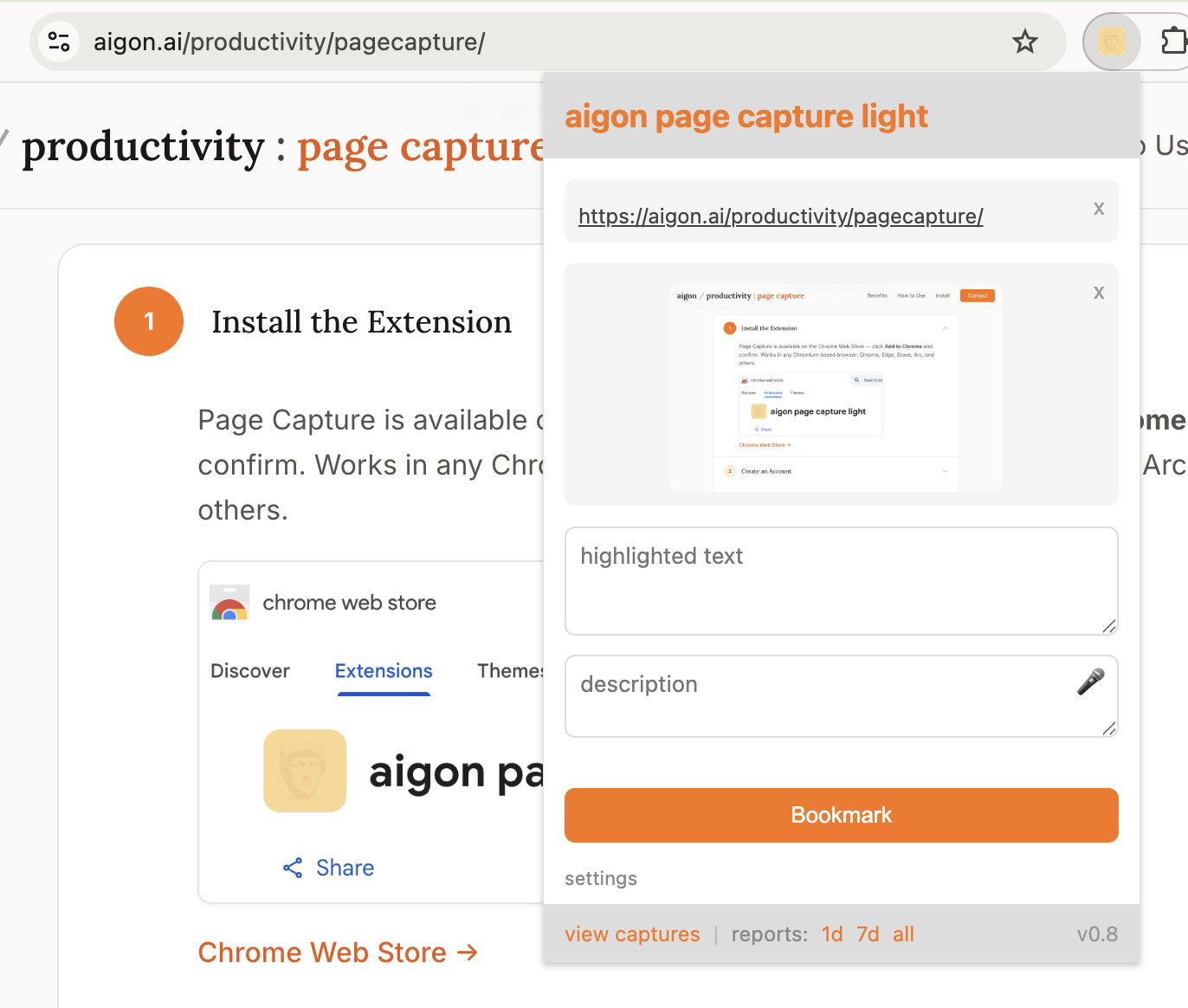
Click the Page Capture icon in your browser toolbar. The extension saves a screenshot of the current page along with the URL and title.

Optionally select text on the page before clicking — the selected text is saved alongside the screenshot for extra context.

You can also annotate your bookmark using voice or keyboard.

Get started →
Capture and Annotate
2

Browse, Search and Generate Reports

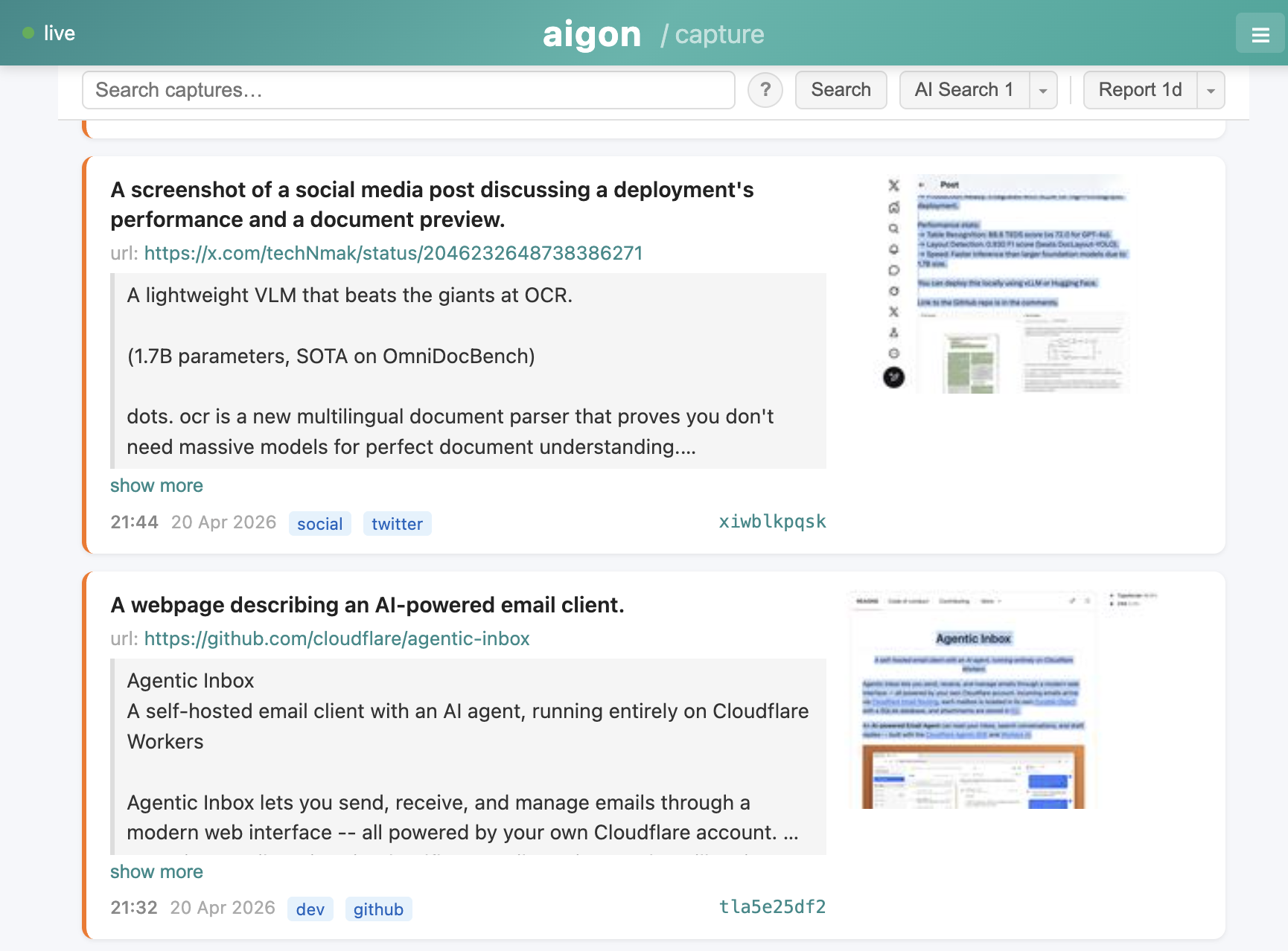
View your bookmarks, search them, and generate reports on the web.

AI-powered semantic search finds the right page even if you don't remember the exact title or URL.

a1.aigon.ai/capture →
Browse, Search and Generate Reports
3

Query Directly from Claude etc

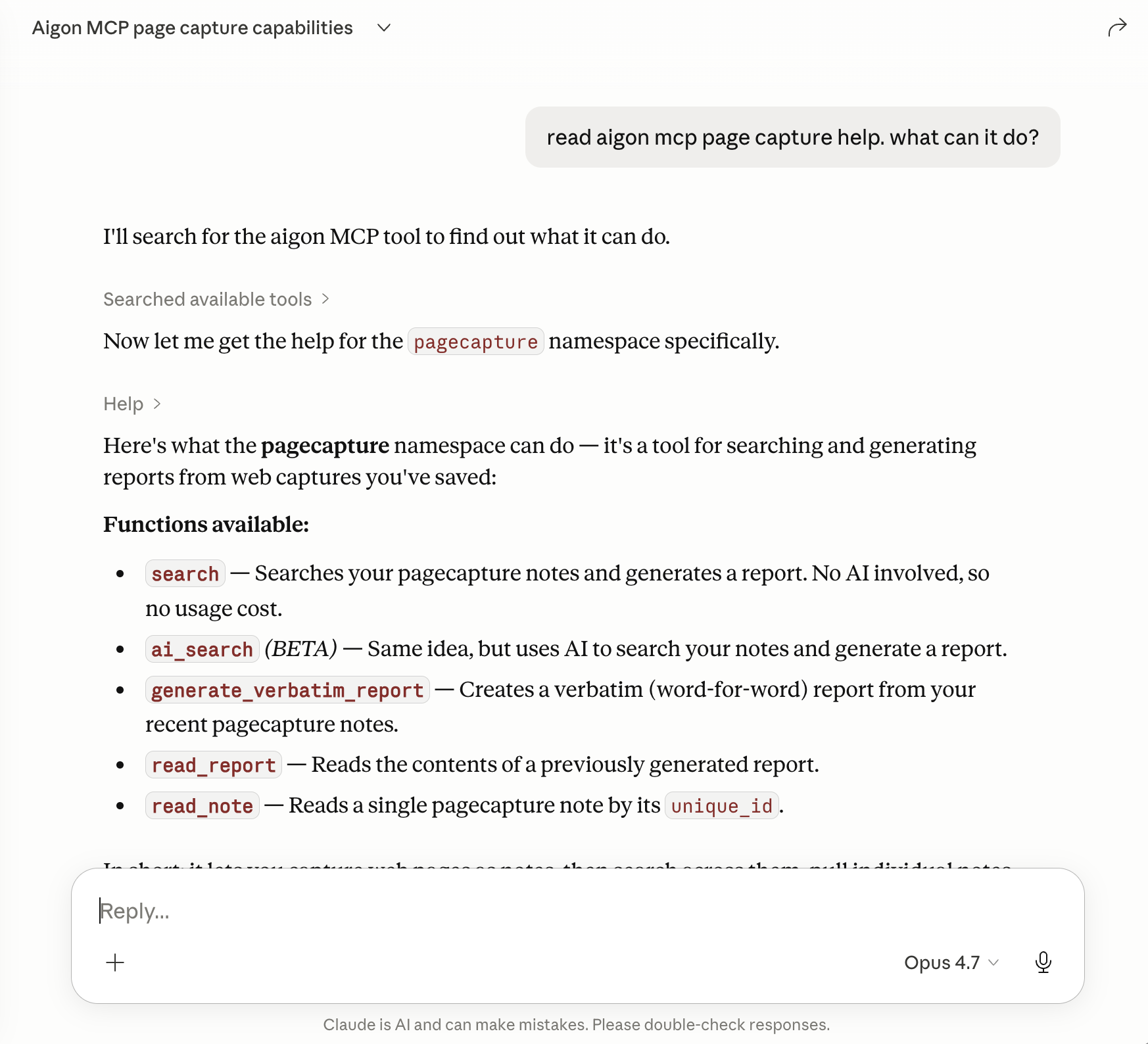
Connect your AI assistant to Aigon via MCP and query your captures directly from Claude, Cursor, Gemini, and others.

Search, generate reports, and read individual notes — all from your AI assistant.

MCP setup instructions → Troubleshooting →
Query Directly from Claude etc

Get Started

It only takes a few minutes!

1

Install the Extension

You can install the Page Capture plugin directly from the Chrome Web Store: click Add to Chrome and confirm. Works in any Chromium-based browser: Chrome, Edge, Brave, Arc, and others.

Important note: the extension only transmits data to Aigon when a bookmark is saved or for transcription of your voice comment.

Aigon Page Capture Light on the Chrome Web Store Chrome Web Store →
2

Create an Account

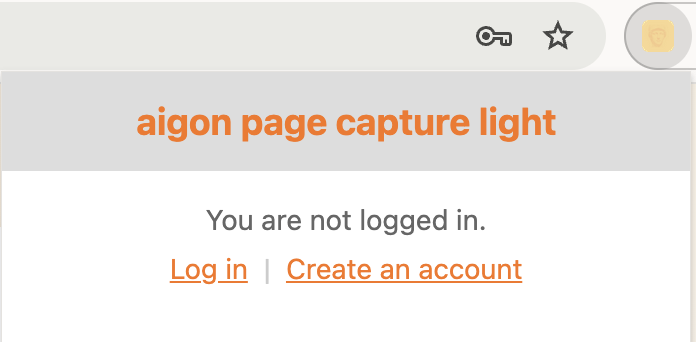
Click the extension icon — if you're not logged in you'll see the login screen.

Page Capture login screen

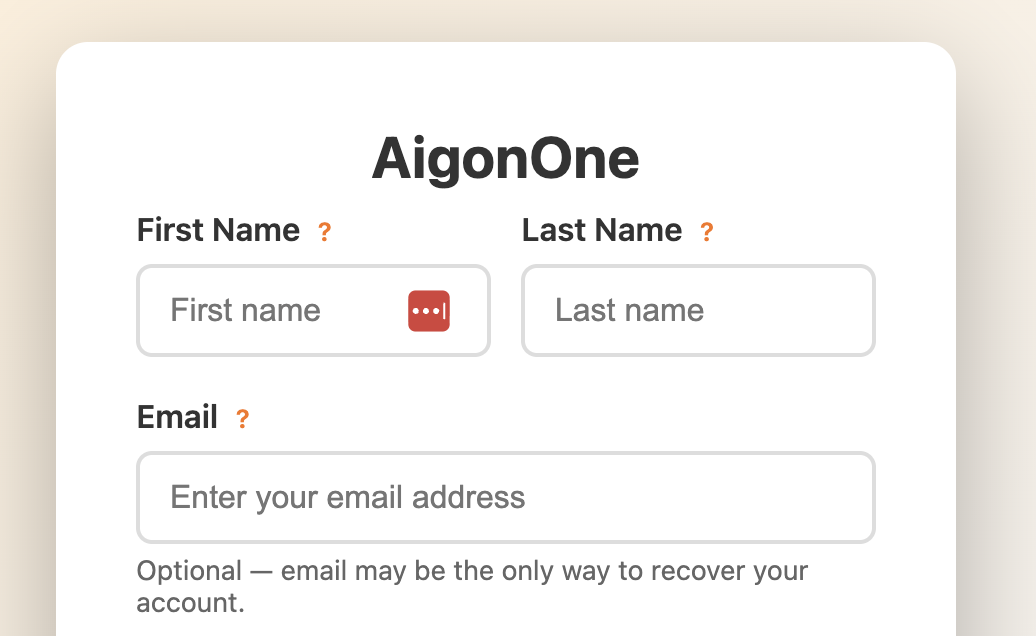
Click Create an account to sign up. All fields are optional — but if you do not provide an email (or do not confirm it within 24 hours) you will not be able to recover your account if you lose your login link.

AigonOne account creation form

Already have an account? Click Log in and enter your API token instead.

3

Log In / Recovery

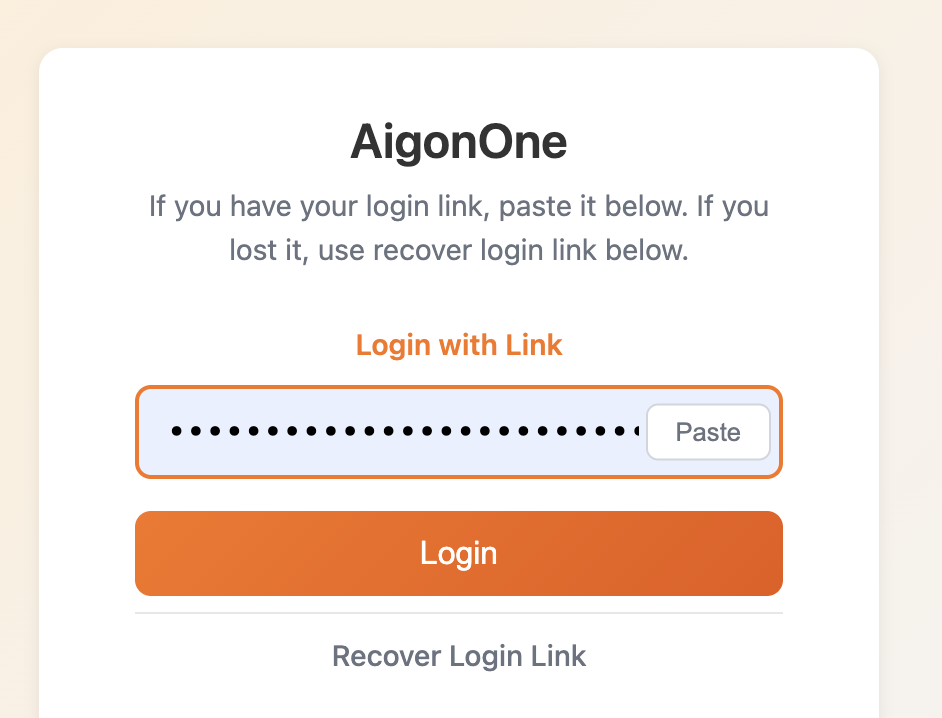
When you have an account you can log into Aigon at a1.aigon.ai/login — paste your login link into the form. If you have Chrome autofill password enabled it will allow you to save your login information.

If you have provided an email you can recreate a new login link by choosing Recover Login Link on that page.

AigonOne login form
4

Install MCP Server (Optional)

Note: in many cases it is easiest to ask the AI assistant to install the MCP server, point it to the setup instructions or the llms.txt.

Connect your AI assistant to Aigon via MCP. You'll be prompted to authenticate on first connection.

Command line install (Claude Code)

claude mcp add --transport sse aigon-mcp-server https://mcp.aigon.ai/sse

Configuration for SSE-capable LLMs (Cursor, Gemini CLI)

{
  "mcpServers": {
    "aigon-mcp-server": {
      "url": "https://mcp.aigon.ai/sse"
    }
  }
}

Configuration using mcp-remote (Claude Desktop)

{
  "mcpServers": {
    "aigon-mcp-server": {
      "command": "npx",
      "args": ["mcp-remote", "https://mcp.aigon.ai/sse"]
    }
  }
}

Configuration using absolute path (if npx is not found)

{
  "mcpServers": {
    "aigon-mcp-server": {
      "command": "/path/to/npx",
      "args": ["mcp-remote", "https://mcp.aigon.ai/sse"],
      "env": {
        "PATH": "/path/to/node:/usr/local/bin:/usr/bin:/bin"
      }
    }
  }
}

Find your npx path with which npx in your terminal.

Full setup instructions →
5

Start Capturing

Navigate to any page you want to save, click the extension icon, optionally add a note or select text, and hit Bookmark.

Your captures appear immediately in AigonOne and are searchable within seconds.

Page Capture extension popup showing capture UI
6

Check It Works

See and search your captures and generate reports at a1.aigon.ai/capture.

AigonOne captures page showing saved web pages

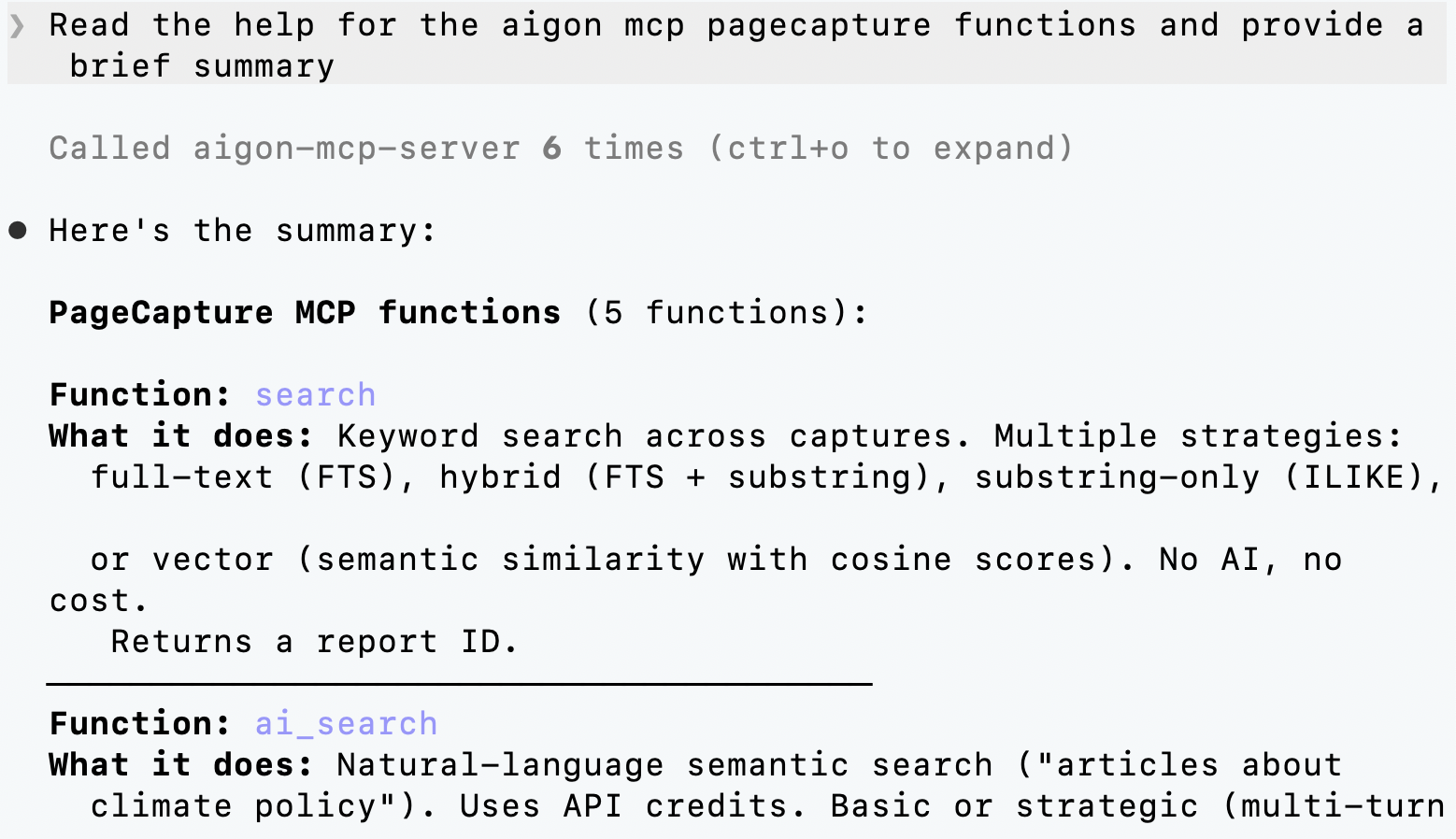
Alternatively, you can query your notes from inside Claude, Claude Code, Cursor, Gemini, and others using the Aigon MCP server.

PageCapture MCP functions in Claude Code PageCapture MCP page capture capabilities
7

Troubleshooting

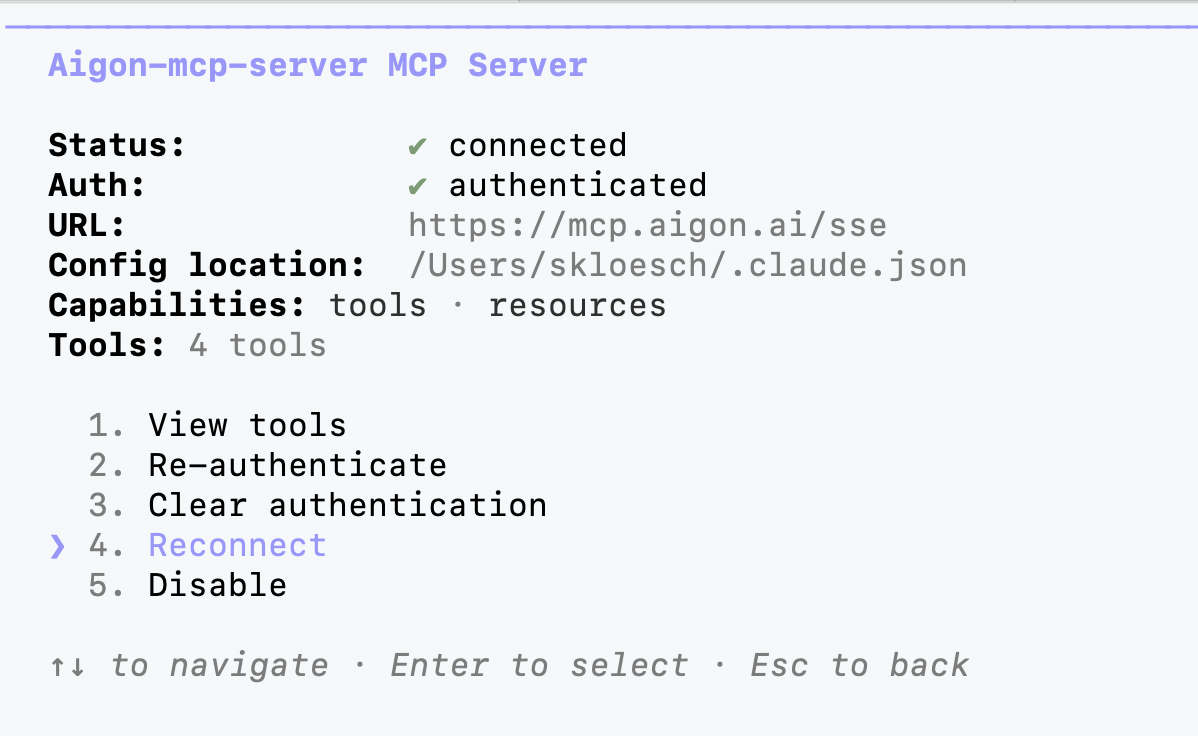
If the MCP connection drops, you may need to reconnect. In some clients this is possible via the menu — for example in Claude Code, use the /mcp command, select the server, and choose reconnect.

Claude Code MCP server reconnect dialog

If your client does not support reconnecting (e.g. Claude Desktop), simply restart the application.

8

Preview Version

If you would like to install the preview version, follow the instructions on a1.aigon.ai/extension.

An even newer version may be available on a1s.aigon.ai/extension, which may or may not be compatible with the backend you are using.

If you are using these extensions rather than the one from the Chrome Web Store, we suggest you get in touch with us.

Stop losing tabs. Start capturing.

Add to Chrome — Free